
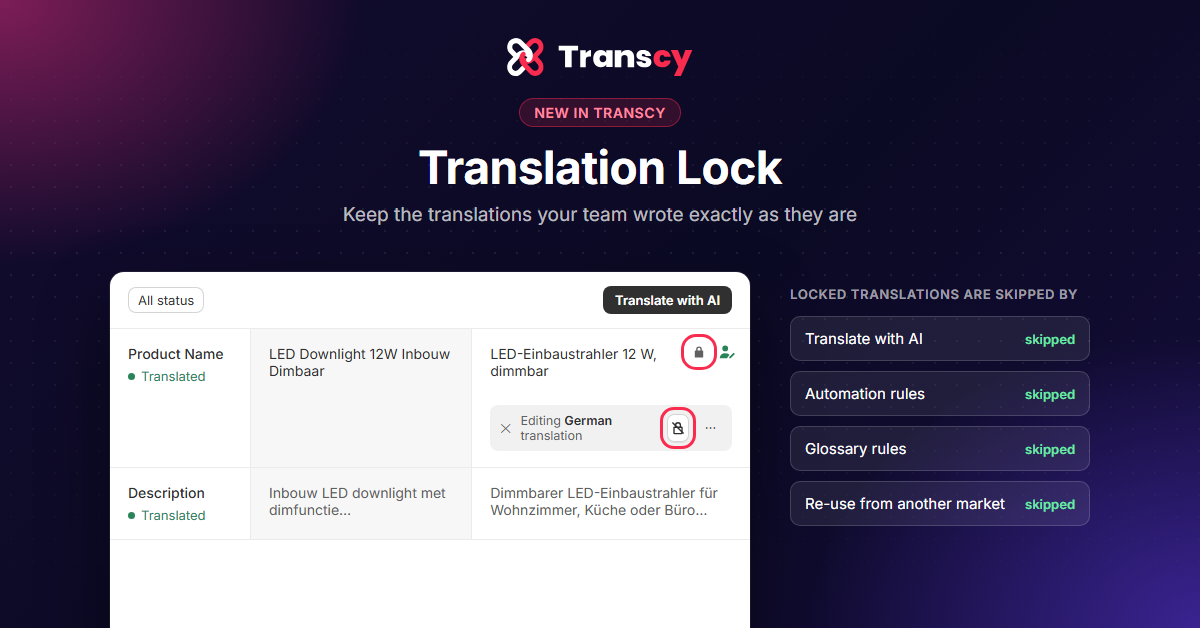
Your translations aren’t all equal. Some are fine to refresh automatically whenever your original content changes. Others were carefully written by your team for one specific market, and they should stay exactly as they are.
Until now, that was hard to manage. Today we’re introducing Translation Lock: a simple way to tell Transcy which translations it must never change on its own.
The problem: not every manual edit is the same
When you edit a translation by hand, it can mean two very different things:
- A quick fix. The machine chose the wrong word or got the grammar slightly wrong, so you corrected it.
- Copy written for a market. Your team rewrote a product description, landing page or blog post to speak to customers in that market, with a different angle, tone or selling points.
Only you know which is which. So until now, a bulk translation, a glossary update or an automation rule could replace work you wanted to keep.
The solution: you decide what’s protected
With Translation Lock, you protect a translation with one click. Transcy then leaves it exactly as it is when you:
- Run Translate with AI, even across many items at once
- Have automation rules running, even when your original content changes
- Apply glossary rules to existing translations
- Re-use translations from another market
- Delete translations in bulk
Locked translations are skipped, so they don’t use any tokens.
A lock stops automatic changes, not yours. You can still edit a locked translation yourself or restore an older version from Translation history.
Everything you don’t lock keeps working as before. The rest of your store stays up to date, and the content you care most about stays as written.
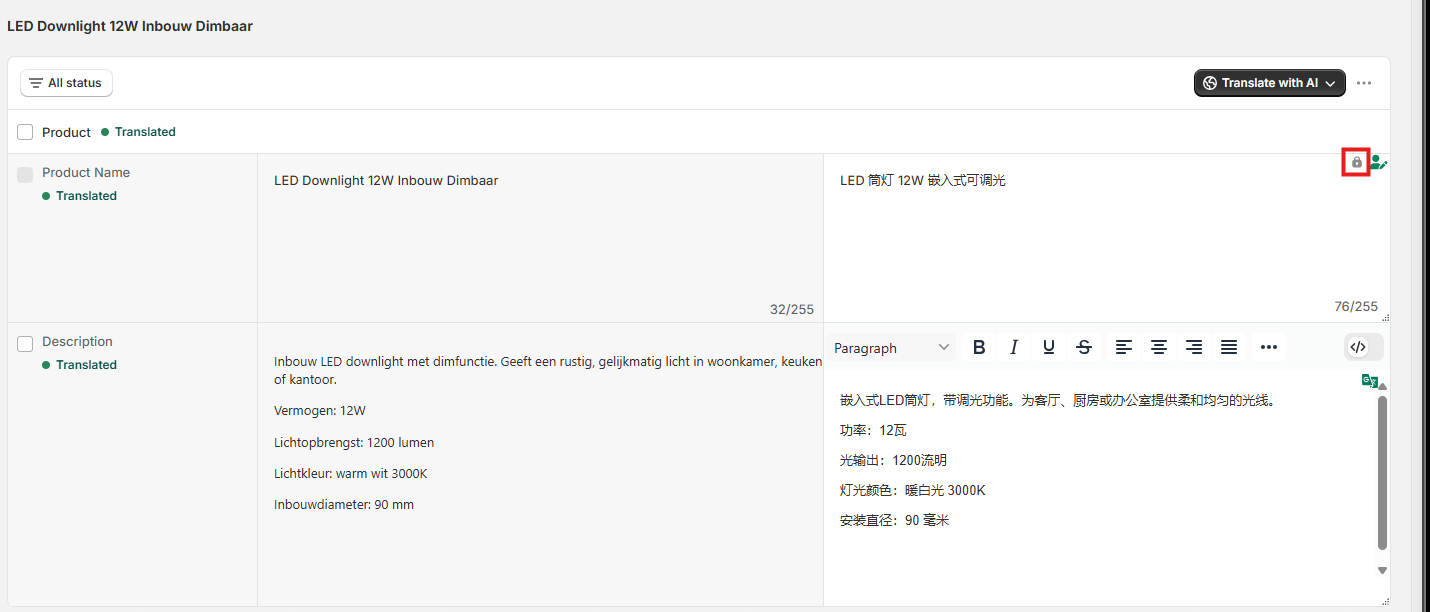
Precise control, field by field
You lock a single field in a single language. Lock your German product description and the German title can still update automatically, and so can the French description. You protect exactly what your team wrote and nothing more.

When you change the original text later, a locked translation is marked Outdated instead of being replaced. You can see what needs a look, and you decide whether to update it by hand or unlock it.
Locking works on products, collections, pages, blog posts, theme content and the rest of your translatable content. Image translations are the only exception.
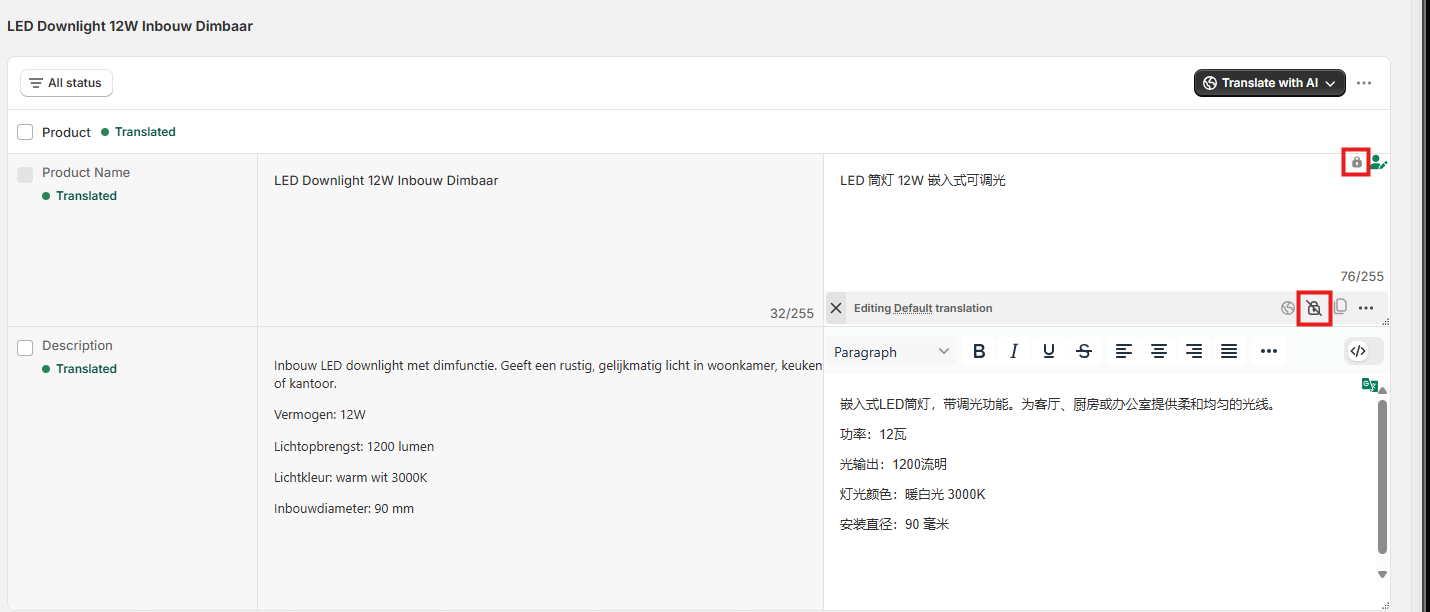
When to use Translation Lock
- Market-specific product copy: Product descriptions your team rewrote for one market, with different selling points or tone than the original. Lock them so Translate with AI doesn’t replace them with a direct translation. For example, a German description that leads with the warranty.
- Campaign and landing pages: Copy for a limited-time campaign that must stay the same until it ends, even if you edit the original page. For example, the French text on your Black Friday landing page.
- Legal and compliance text: Wording that was reviewed for a specific country and shouldn’t change without another review. For example, your Spanish returns policy.
- Machine translations you’ve approved: Any translation you’ve checked and are happy with, even if a machine wrote it. For example, the Japanese title of your bestseller.
Get started
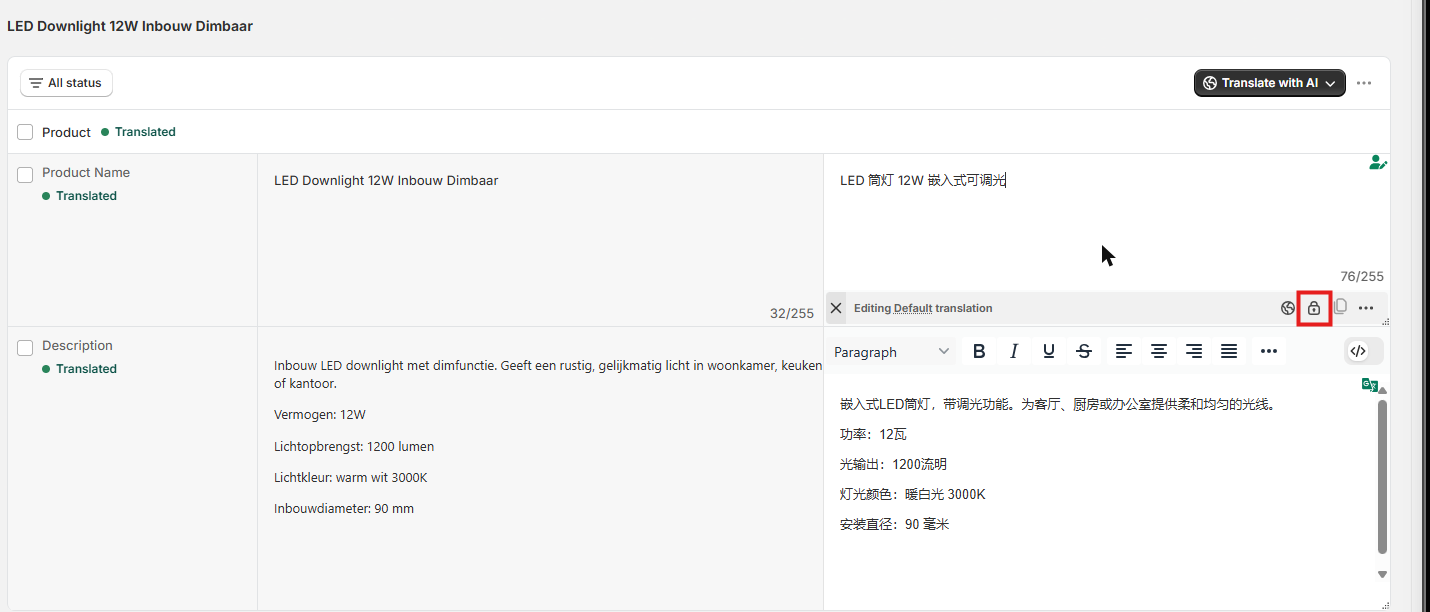
Translation Lock is available now on all Transcy paid plans. Open any item in Content translation, click into a translation and click the lock icon. The help guide has the full steps.
Open Transcy · Read the help guide

"The best Shopify translation and localization app designed to help merchants expand globally by translating their store content into multiple languages and adapting it to different currencies and markets."


Table of Contents

"The best Shopify translation and localization app designed to help merchants expand globally by translating their store content into multiple languages and adapting it to different currencies and markets."